Effective management of data pipelines is key to ensuring continuous development, testing, and deployment processes. Integrating Git with Microsoft Fabric workspaces offers a structured and efficient approach to managing these pipelines, fostering collaboration and version control in a more organized and secure way.
In this article, we’ll take a detailed look at best practices for using Git-enabled Microsoft Fabric workspaces. We’ll cover essential aspects such as initial setup, code organization, branching and merge strategies, as well as automation and monitoring.
The integration between Git and Microsoft Fabric lets development teams work collaboratively, keeping a detailed history of changes and making it easier to track and roll back changes when needed. We’ll also discuss how to set up CI/CD (Continuous Integration and Continuous Delivery) pipelines using Azure DevOps to make sure code is tested and deployed consistently and reliably.
The diagram below describes the integration between Azure DevOps and Microsoft Fabric, illustrating the flow from development environments to production environments. This visual representation helps you understand how code changes are managed and promoted through the different stages, from initial development all the way to final deployment in production.
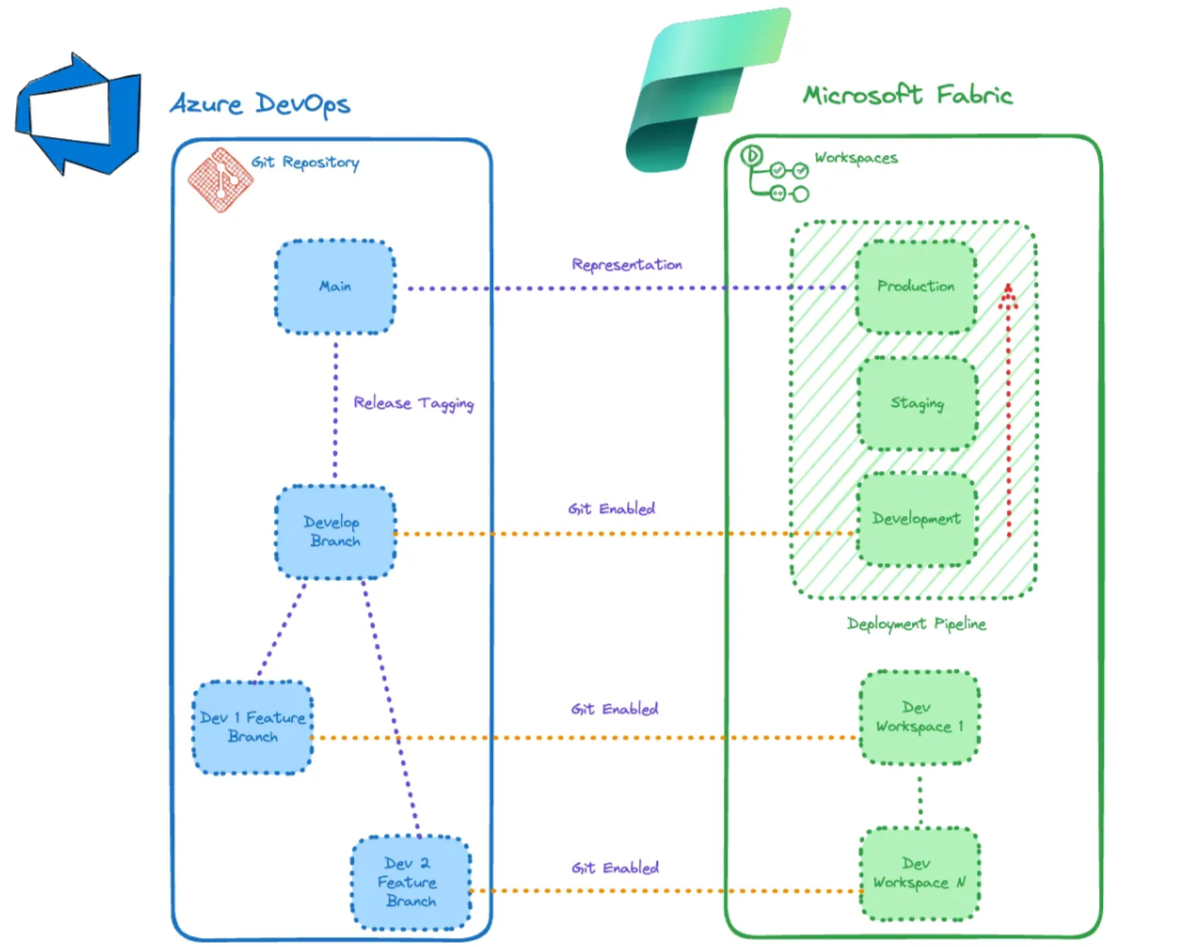
_Example of a Git + Fabric Workspace setup_
Azure DevOps (Git)
• Main Branch: The main branch for stable releases.
• Development Branch: The main branch for ongoing development.
• Feature branches: for developing specific features.
Microsoft Fabric (workspaces)
- Deployment pipeline: manages promotion to different environments (development, staging, production)
- Development workspaces: individual developer environments.
How to Manage Complex Projects in Microsoft Fabric
Managing large or complex projects in Microsoft Fabric can be challenging, but applying best practices can make the process easier. Here are some of the key lessons that can help you maintain these projects efficiently.
Branching Strategies
Microsoft Fabric developers, who work with pipelines, notebooks, reports, data warehouses, lakehouses, and much more, need to master Git. I understand the learning curve can be steep, especially for data engineers who started out as analysts or DBAs, where Git wasn’t an essential skill. However, as you work on large, complex projects in Microsoft Fabric, Git becomes essential for efficient collaboration.
Feature Branches: Each developer should create a branch off the development branch to work on their own feature or bug fix. Those using Fabric natively can attach that branch to their own personal workspace, such as “MJ’s Project A Workspace”. It’s worth noting that, currently, you can’t enable Git on “My workspace”, so you need to provision a new workspace for this purpose. This also applies to developers working on Power BI reports using Power BI Desktop, which makes this approach independent of the Fabric workspace.
Development Branch: Use this branch to integrate new features and run tests before merging into the main branch. Implementing branch policies is crucial to prevent developers from accidentally pushing or making changes without going through a pull request process. This process ensures that each developer’s work is reviewed before it is deployed.
Main Branch: This should be the source of truth for production-ready code. Only stable, tested code should be merged here. Tagging releases is a good practice for separating different versions, making it easier to roll back changes if needed.
It’s worth pointing out that the main branch is not Git-enabled in the Fabric workspace; only the development branch is associated with a workspace. We’ll go into this in more detail in the next section.
Git Integration in Microsoft Fabric
Microsoft Fabric workspaces, including Power BI ones, support Git integrations. Currently, this integration is available only with Azure DevOps, but GitHub support is expected to be added soon.
To set up the integration, just open the workspace settings and go to the “Git integration” tab. From there, connect the workspace to Azure DevOps. This integration makes it easier to manage code and collaborate among developers, making the development process more robust and efficient.
Conclusion
Implementing these best practices will help you get the most out of Git-enabled Microsoft Fabric workspaces. This not only improves the efficiency of data pipeline management, but also strengthens collaboration and version control within development teams.