
In the data world, building a bronze layer, which organizes raw data into an accessible structure for later transformations, has traditionally involved a lot of coding. Recently, however, I explored a new approach using Databricks Assistant AI that let me build a bronze layer without writing a single line of code.
Databricks Assistant AI is an artificial intelligence tool built into the Databricks environment, designed to simplify the development and automation of data pipelines. It works by interpreting natural language commands, letting users set up complex tasks such as data ingestion, transformations and validations without writing code by hand. It’s an ideal solution for professionals who want more speed and efficiency in their data projects, cutting the time spent coding and minimizing common development mistakes.
Here’s the step by step of how I managed to automate this process using notebooks and artificial intelligence.
Creating the Notebook
To start, I created a notebook called 01_Tabelas_Bronze_GenAI with the comment: “Notebook for creating the bronze layer.” This notebook was the foundation for building the bronze layer automatically, with no manual coding. Each step was set up simply, using Databricks Assistant AI to handle the logic behind the actions.

There are 2 ways to access the Assistant: through the notebook cell, or in the top right corner right after the name of your Databricks service (in my case “jml-databricks”). I chose to use it per cell to better explain building the Bronze layer step by step.
Once it’s created, let’s have some fun!
Step 1: Creating Parameters
First, the essential parameters for running the process were defined. These parameters control the file paths and the source format of the data.
- Name: par_path Type: Text Comment: Path of the data source folder
- Name: file_format Type: Text Comment: Format of the source file (CSV, JSON, etc.)
- Name: file_name Type: Text Comment: Name of the source file
With these parameters, you can make sure the pipeline adapts to different data sources.
Crie um notebook
Nome: 01_Tabelas_Bronze_GenAI
Comentário: Notebook de criação da camada bronze.

Ação: Cada passo abaixo é uma célula no notebook.
--------------------------------------------------------------------------------------------
Passo 1 - Criação de Paramêtros

Nome: par_path
Tipo: Texto
Comentário: Caminho da pasta

Nome: file_format
Tipo: Texto
Comentário: Nome do Arquivo de Origem

Nome: file_name
Tipo: Texto
Comentário: Formato do Arquivo de Origem
--------------------------------------------------------------------------------------------
To generate the code, click “Toggle Assistant”, paste the prompt above and click Generate.
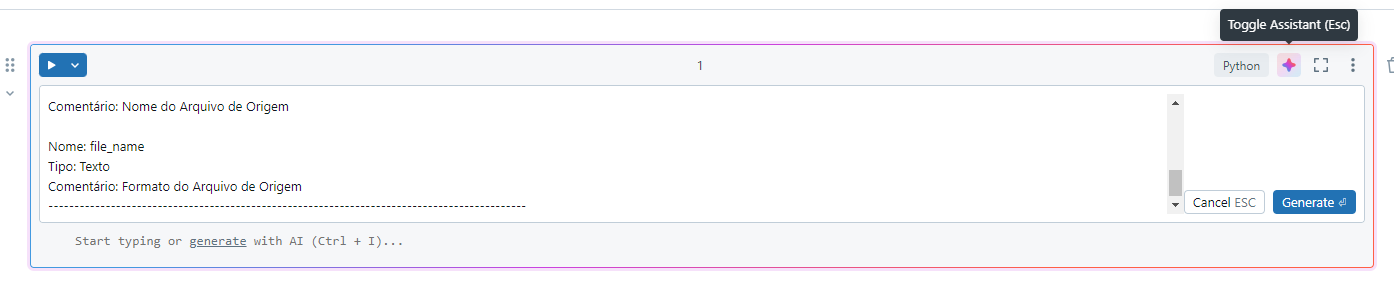
_Loading information into the prompt_
Notice that Databricks will create your Python code; if everything looks right, hit “Accept”.
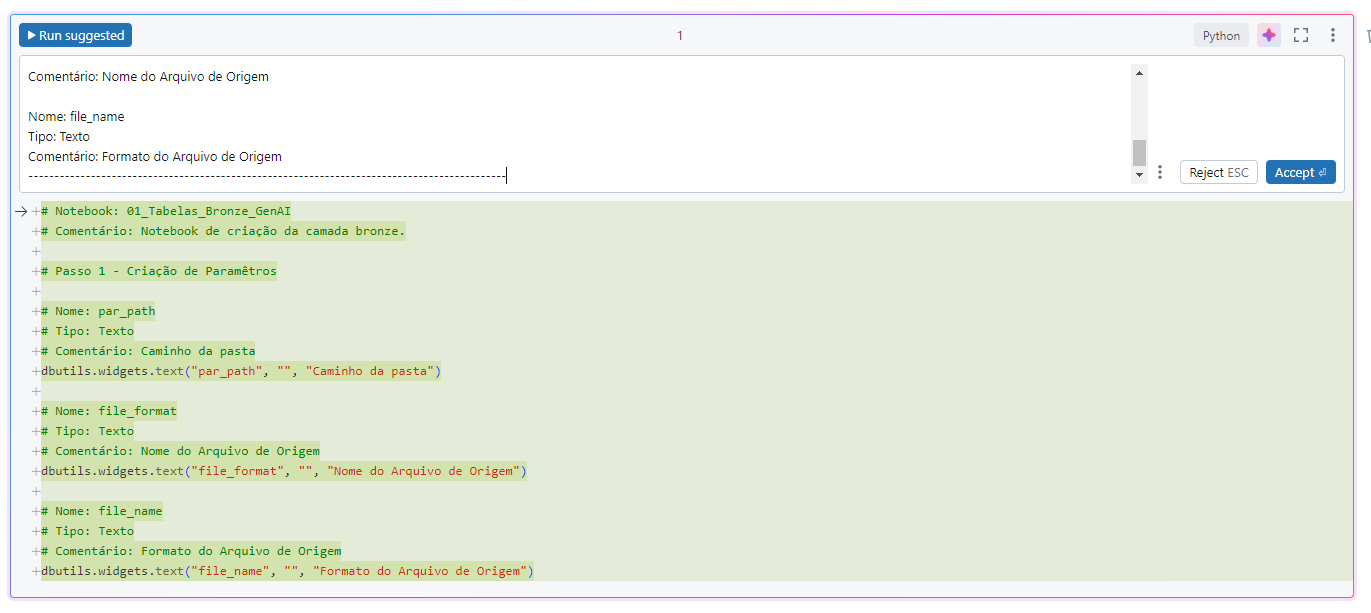
_Accepting the code suggestion_
Now just run it!
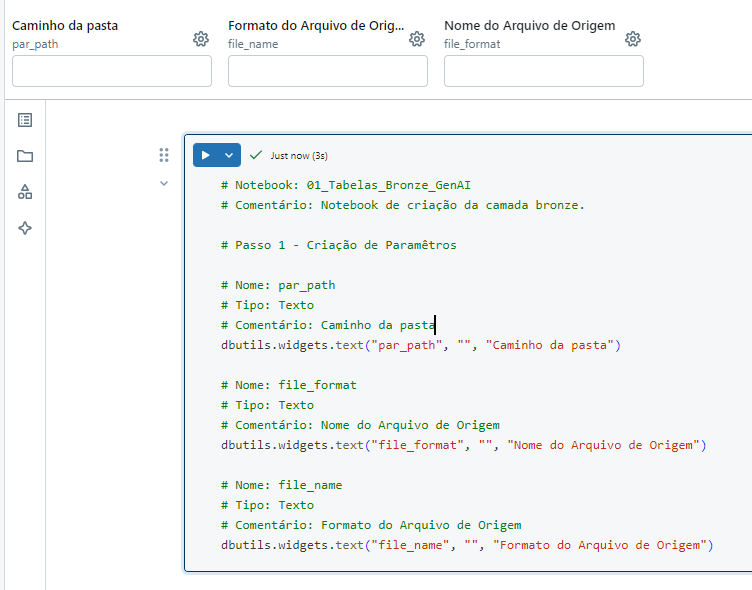
_Code executed_
This run generated 3 widgets.
Step 2: Automatic Parameter Validation
With the parameters configured, the next step was to make sure they were read and validated correctly. Databricks Assistant AI automatically sets up the code to:
- Get all parameters from the widgets.
- Print the values for debugging purposes.
- Check whether the parameters are defined and, if not, display a message saying they are required, ending the notebook run.
This validation step is crucial to avoid problems with incorrect or incomplete data.
Passo 2 - Paramêtros de execução automático

Obter os parâmetros de todos os widgets.

Imprima os valores desses parâmetros para fins de depuração.

Verifique se todos os parâmetros estão definidos. Se não estiver, mostre uma mensagem informando que ele é obrigatório e encerre a execução do notebook com um código de saída 1."
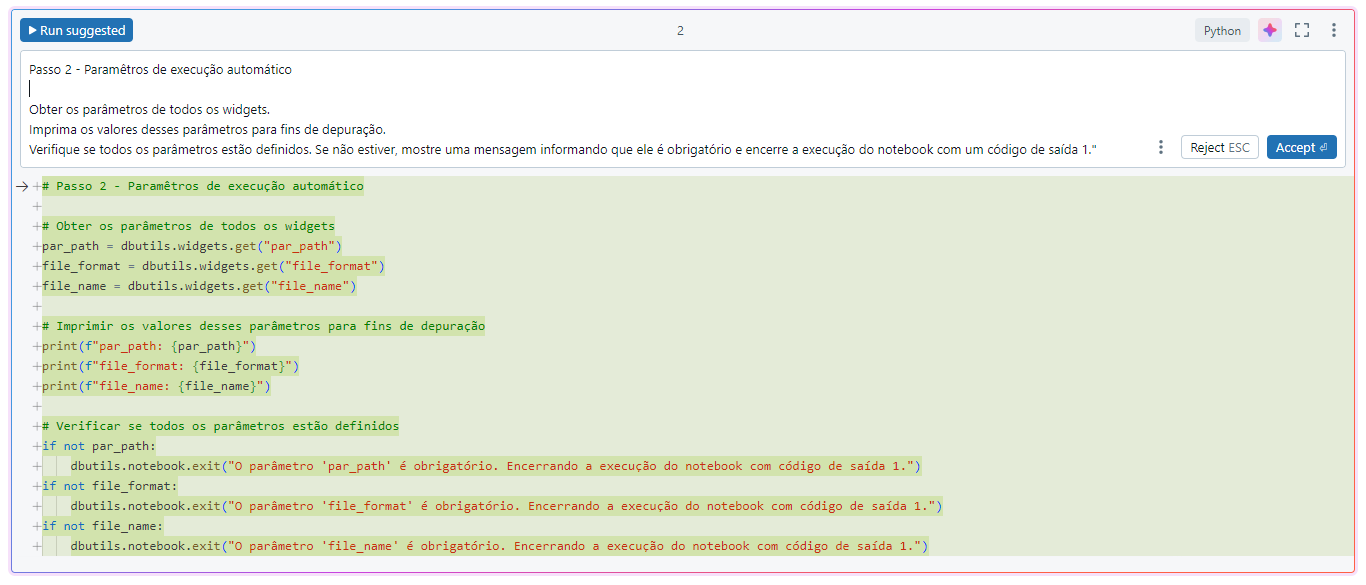
_Step 2 prompt_
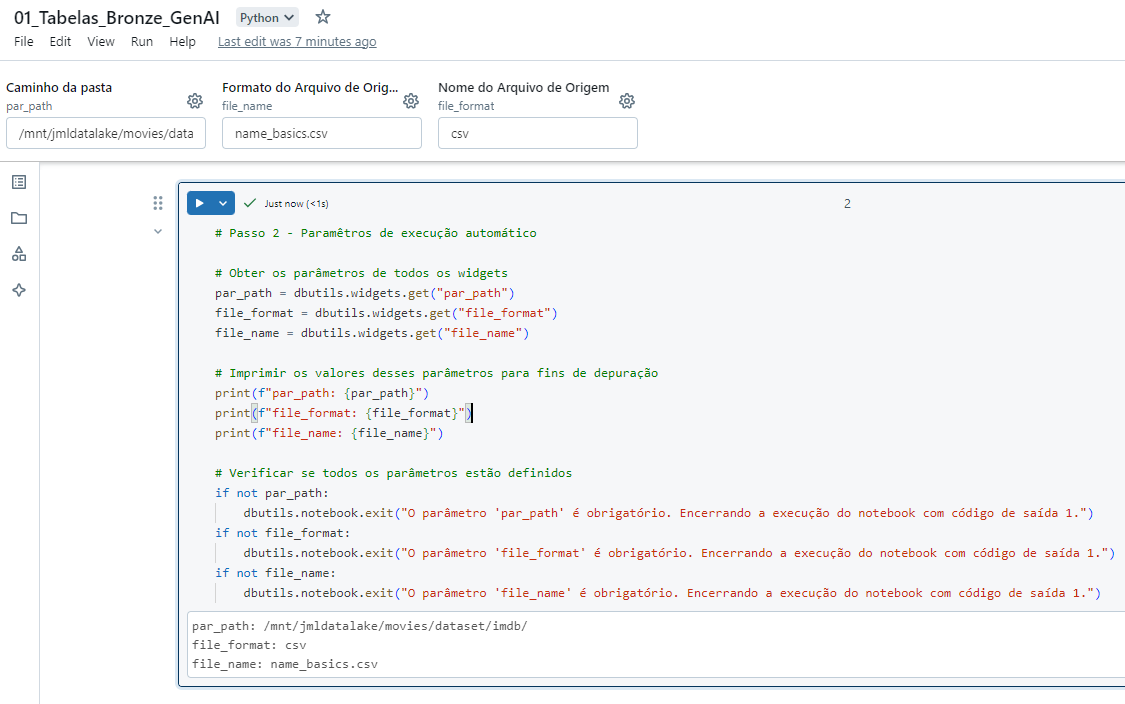
_Step 2 code executed_
To run this code I added the parameters:
- par_path: /mnt/jmldatalake/movies/dataset/imdb/
- file_format: csv
- file_name: name_basics.csv
Step 3: Creating the Database
With the parameters validated, the next action was to create the database where the bronze layer would be stored. Through Databricks Assistant AI, I set up the following command:
- Database Name: movies_bronze
- Storage Path: /mnt/jmldatalake/movies_bronze/database
- Comment: Bronze layer database
If the database already existed, the notebook wouldn’t recreate it, keeping the process efficient.
Passo 3 - Criar Banco de Dados

Ação: Crie uma base de dados (se não existir)

Nome: movies_bronze
Caminho do Armazenamento: /mnt/jmldatalake/movies_bronze/database
Comentário: Banco de Dados da camada Bronze
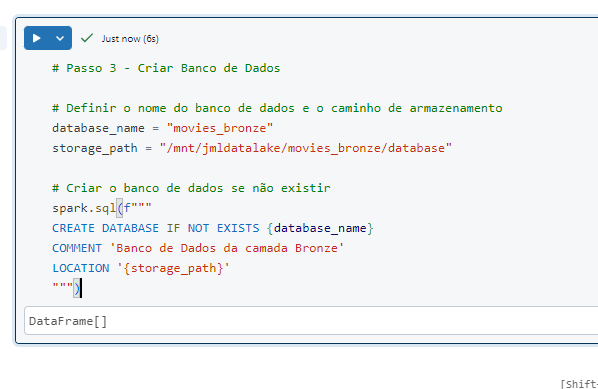
_Step 3 code generated_
Bronze layer database created!
Step 4: Defining the Table Name
To name the bronze layer table, the source file name was used as the basis, with the following transformations applied automatically:
- Removing the file extension.
- Replacing “-” characters with “_”.
- Adding the tb_raw_ prefix to the file name.
For example, if the original file were movies-2024.csv, the table name would become tb_raw_movies_2024.
Passo 4 - Definição do nome da tabela

Condição: Utilize a variável que contenha Nome do Arquivo de Origem

Ação:
1. Retire a extensão do Nome do Arquivo de Origem
2. Substitua "-" por "_"
3. Adicione o prefixo "tb_raw_" ao Nome do Arquivo de Origem
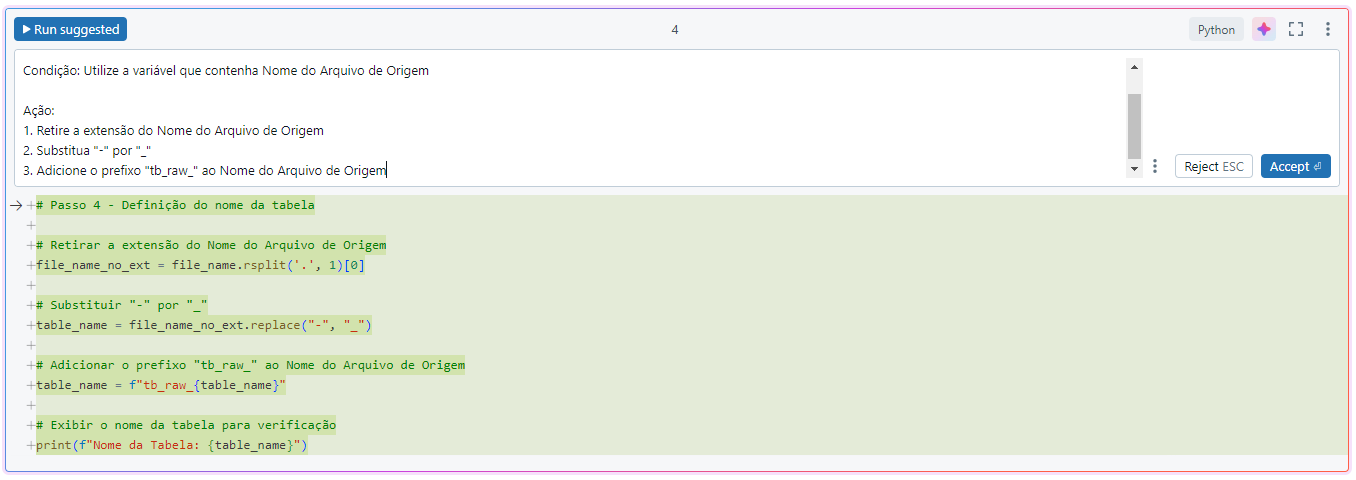
_Step 4 prompt_
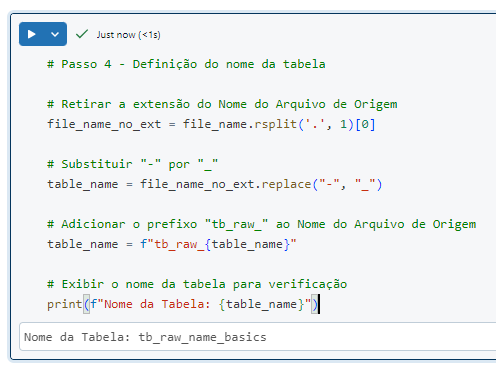
_Code Executed_
Step 5: Reading Files
The next step was reading the raw data files. Using the source path and the file name, Databricks Assistant AI automated reading the data with the following settings:
- Header: True
- InferSchema: False
- Delimiter: Tab (\t)
After reading, the number of ingested records was printed automatically for verification.
Passo 5 - Leitura de Arquivos

Crie uma variável que una o caminho de origem do arquivo e o nome do arquivo de origem, retire os 5 últimos caracteres e adicione *

Ação: Leia o Arquivo de acordo com a variável criada acima com os parâmetros abaixo:

Cabeçalho: Verdadeiro
InferSchema: Falso
Delimitado: \t

Após isso, imprima na tela a quantidade de registros ingeridos na tabela.
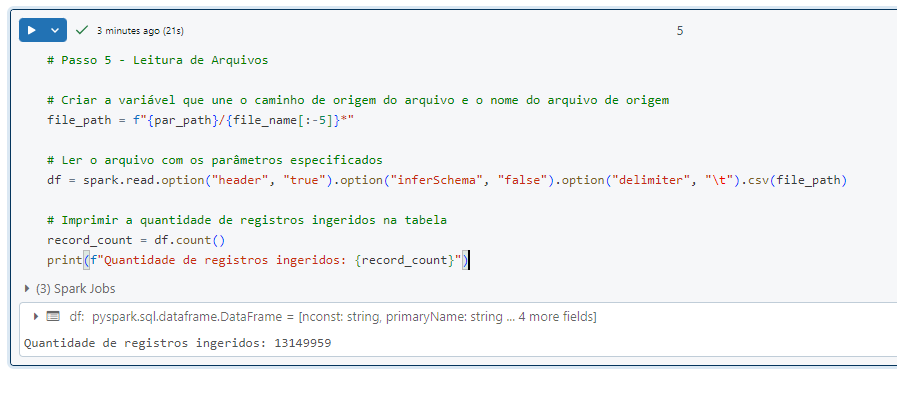
_Code executed in step 5_
Step 6: Writing Data in Delta Format
Finally, the data was saved in Delta format, which offers high performance and versioning capability. The write was configured with the following options:
- Overwrite Mode: True
- Overwrite Schema: True
- Multi Line: False
That way, the data was overwritten, keeping the bronze layer consistent. After the write, the number of records in the target was also printed, confirming the operation succeeded.
Passo 6 - Gravação de Arquivos

Salve o dataframe criado no passo anterior em formato Delta utilizando os parâmetros abaixo:

Modo Overwrite: Verdadeiro
Substituir Schema: Verdadeiro
Multi Linhas: False

Após isso, imprima na tela a quantidade de registros ingeridos na tabela destino.
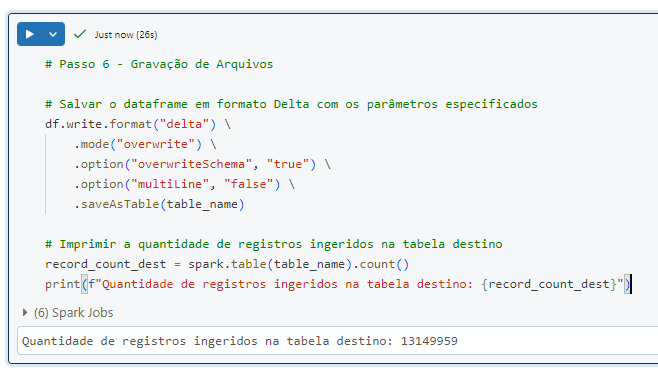
_Code executed for step 6_
Conclusion
With the help of Databricks Assistant AI, I was able to automate building a bronze layer quickly and efficiently, without writing a single line of code. What used to be a manual, error-prone task became a simple, controlled and auditable process.
This approach not only saved time but also brought more security and scalability to the data pipeline. I’m excited to see how artificial intelligence will keep transforming the development of data solutions and simplifying processes that, until recently, required deep technical knowledge.
I hope I’ve inspired you to use the Assistant, because it’s really worth it!!
In the next article we’ll tackle the Silver Layer!
See you then!