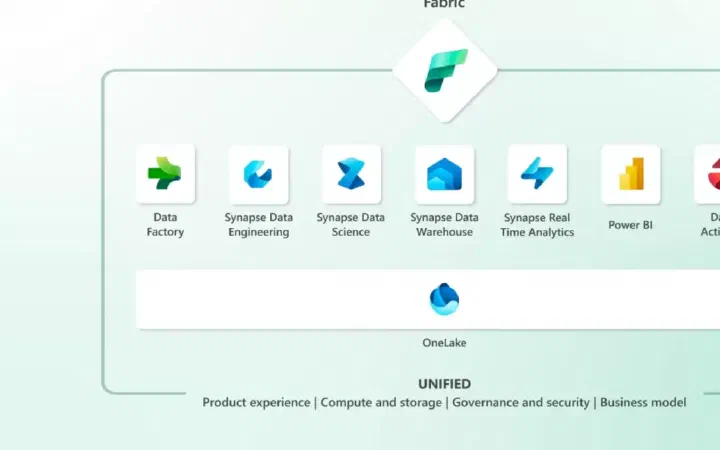
Traditional large-scale data analytics solutions rely on data warehouses and SQL queries to store and retrieve data. However, the rise of big data, characterized by large #volumes , #variety, and #velocity of new data, along with affordable storage and cloud-based distributed computing, introduced a new approach: the data lake. Unlike data warehouses, data lakes store information as files without a fixed schema.
To bridge the gap between data warehouses and data lakes, data engineers and analysts are increasingly turning to a hybrid solution called the data lakehouse. Microsoft Fabric offers a powerful lakehouse solution that combines the scalability of file storage in OneLake (built on Azure Data Lake Store Gen2) with a relational metadata layer based on the open-source Delta Lake table format. This lets you store data in files inside your data lake and apply a relational schema to enable SQL queries.
With Microsoft Fabric, you get the advantages of both data warehouses and data lakes, letting you define tables and views using Delta Lake’s schema capabilities and query them using familiar SQL semantics.
Setting Up Your Workspace in Microsoft Fabric
Setting up a workspace in Microsoft Fabric is the first step to unlocking its data capabilities. By following these simple instructions, you’ll be ready to work with data seamlessly:
- Go to Microsoft Fabric at https://app.fabric.microsoft.com and sign in.
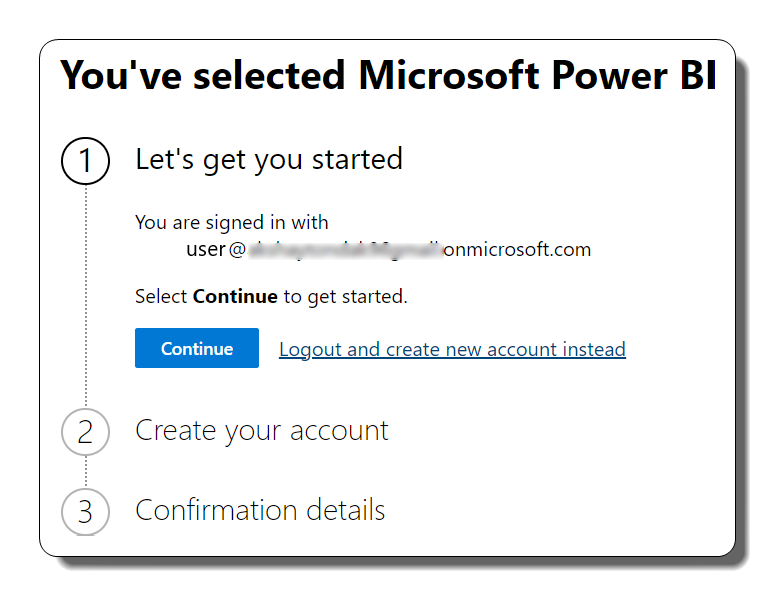
- Go to the menu bar on the left side and click the Workspaces option (you’ll recognize it by the icon that looks like 🗇).
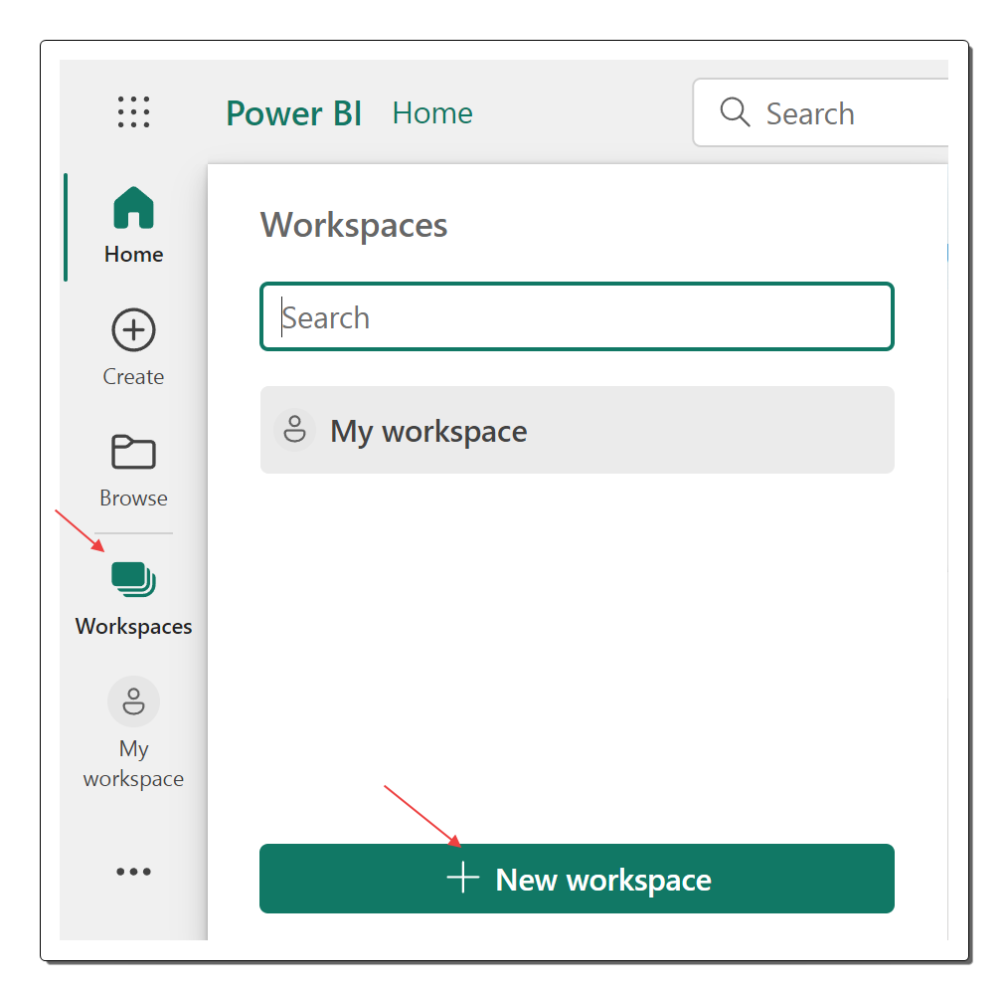
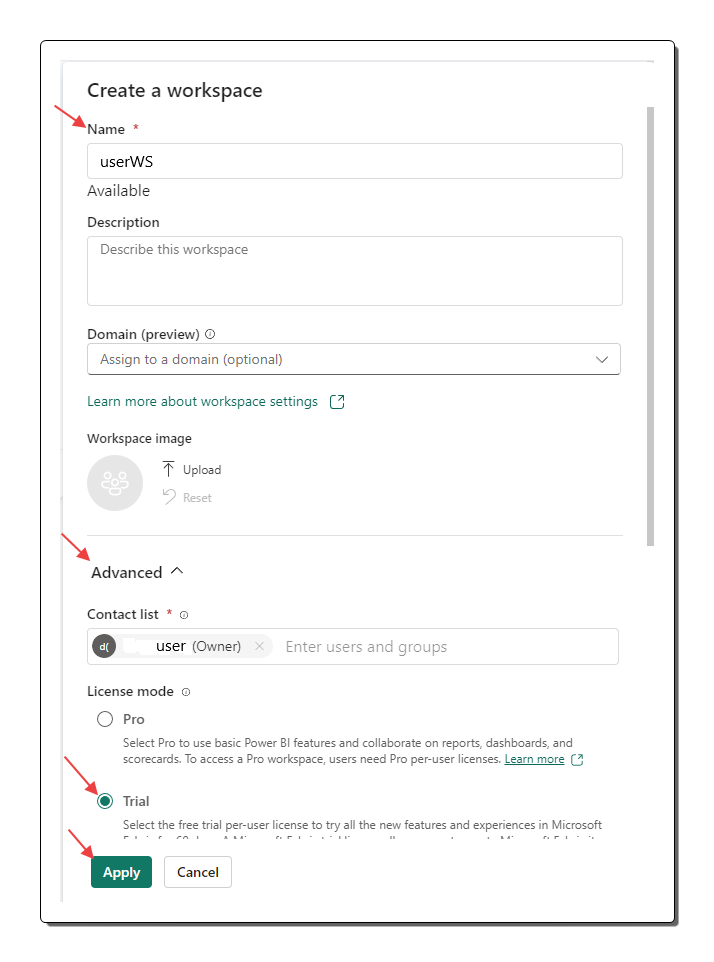
- Create a new workspace, choosing a name that suits your needs. Make sure you select a licensing mode that includes Fabric capacity, such as Trial, Premium, or Fabric.
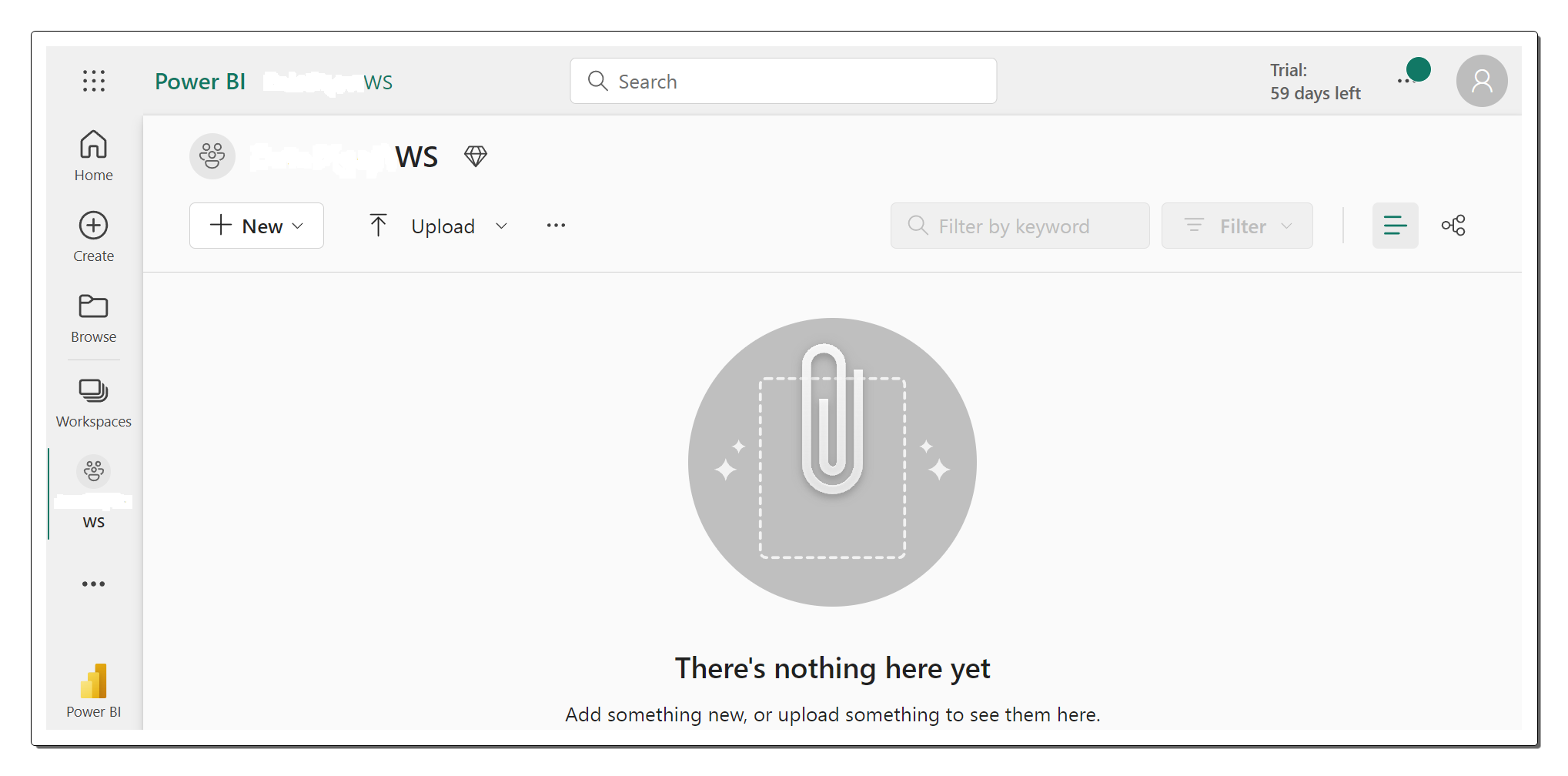
- Once your new workspace is created, it will open, looking empty and ready for you to start tapping into its potential.
Creating a Data Lakehouse in Microsoft Fabric
Now that you’ve set up your workspace, it’s time to dive into the Data Engineering experience in the portal and build a data lakehouse to hold your valuable data files. Follow these steps to get started:
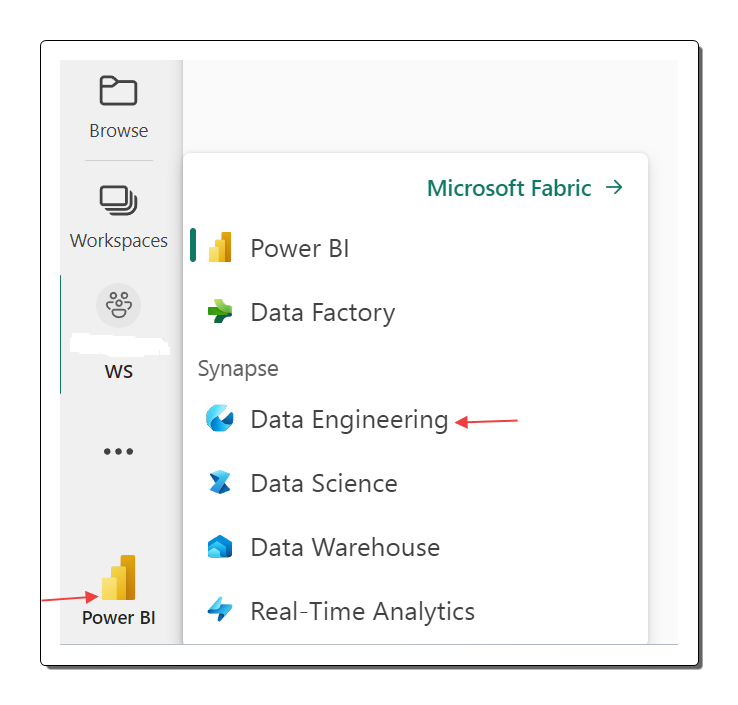
- In the Power BI portal, find the bottom-left corner and switch to the Data Engineering experience.
- The Data Engineering home page presents a variety of tiles that let you easily create commonly used data engineering assets.
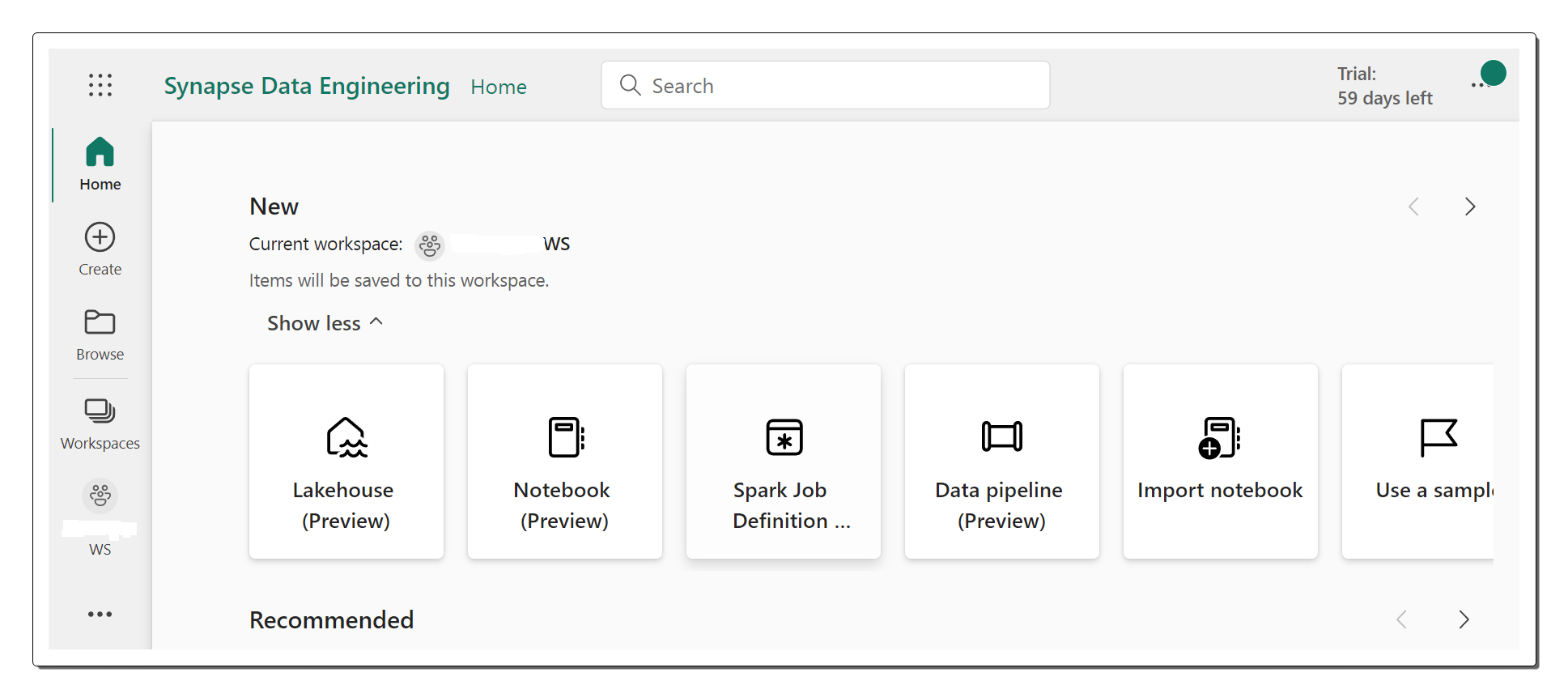
On the Data Engineering home page, start creating a new Lakehouse by giving it a name that fits its purpose.
After a short wait, a new data lake will be created, opening up exciting possibilities for exploration.
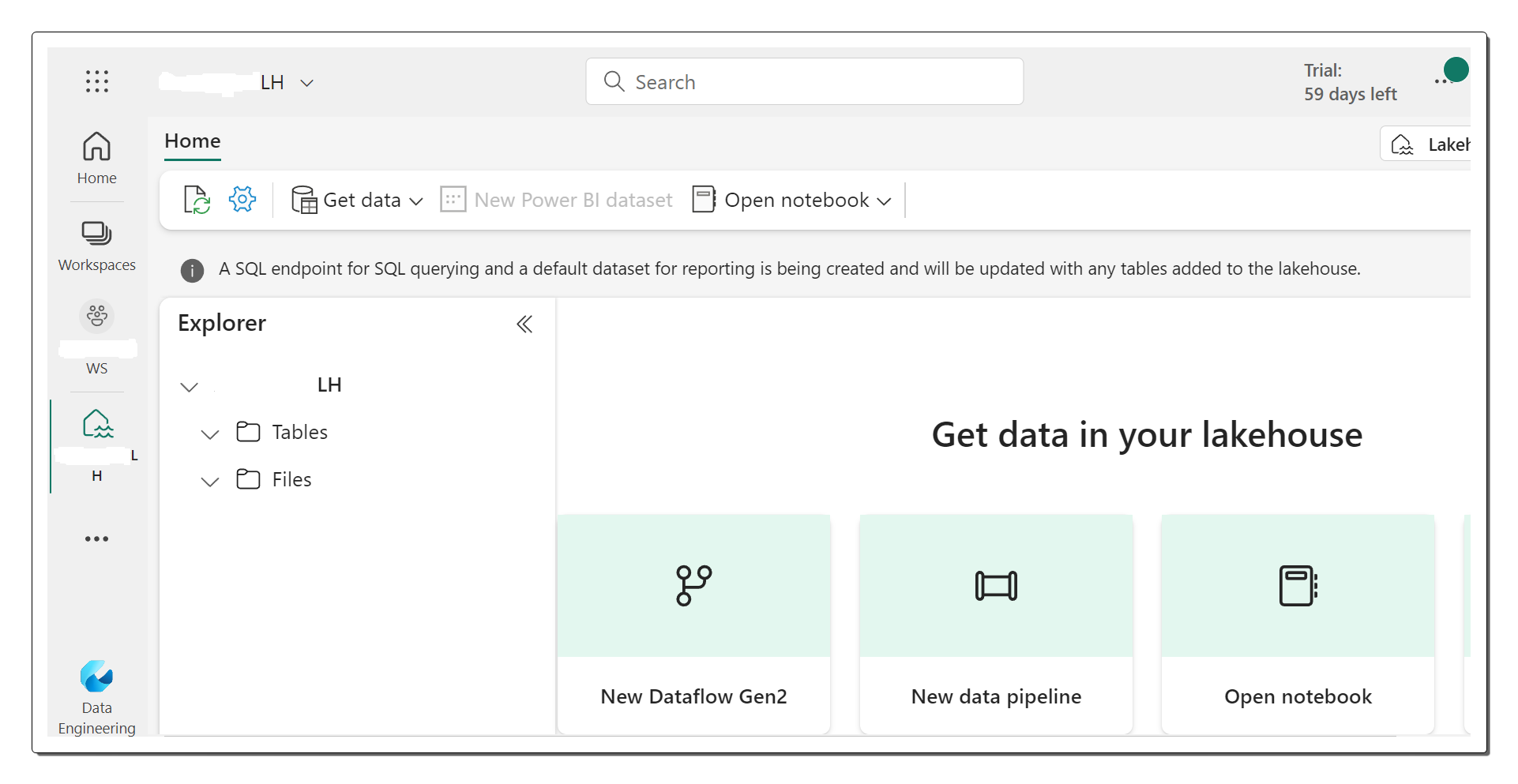
- Notice the Lakehouse explorer pane on the left side, which lets you browse the tables and files that live in your lakehouse.
The Tables folder holds tables that can be queried using SQL semantics. These tables in the Microsoft Fabric lakehouse follow the open-source Delta Lake file format, widely used in Apache Spark.
The Files folder contains the data files stored in OneLake storage, designated specifically for your data lake. This folder also lets you create shortcuts that reference externally stored data.
At the moment, your lakehouse contains no tables or files, giving you a clean slate to begin your data exploration journey.
Ingesting Data into Your Microsoft Fabric Lakehouse
To enrich your lakehouse with valuable data, Microsoft Fabric offers several data ingestion methods. While pipelines and dataflows provide advanced options for copying data from external sources, one of the simplest approaches is to upload files or folders directly from your local computer. Follow these steps to upload data seamlessly to your lakehouse:
Download the sales.csv file from the following source: Kaggle sales.csv file URL. Save the file as sales.csv on your local computer.
Go back to the browser tab where your data lake is open. In the Lakehouse Explorer pane, go to the Files folder and click the ellipsis menu (…). From the drop-down menu, select “New subfolder” to create a subfolder called “dados”.
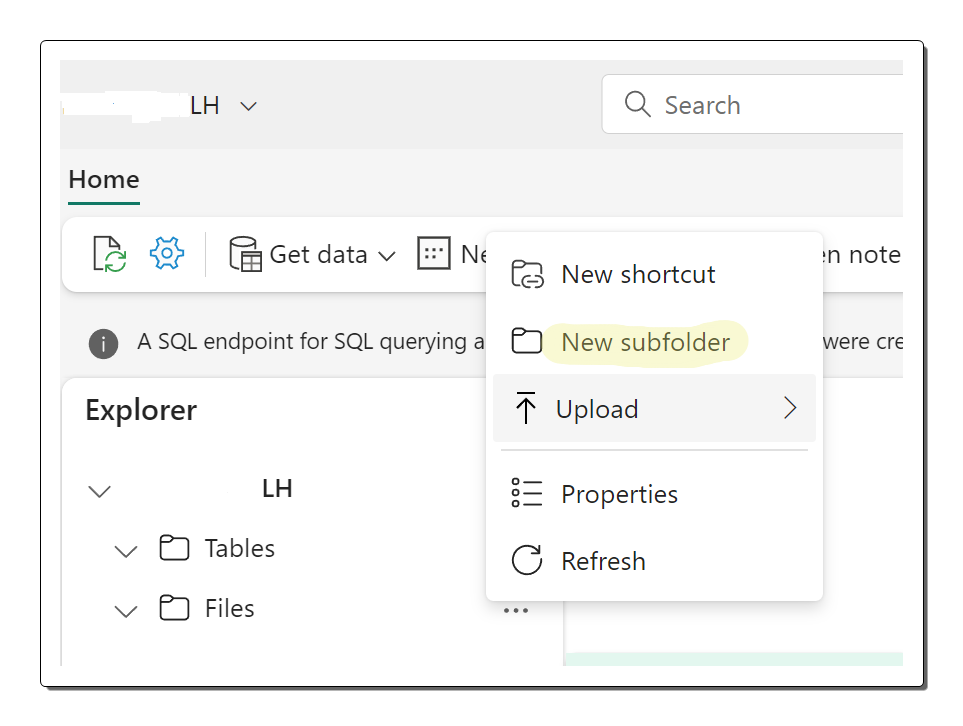
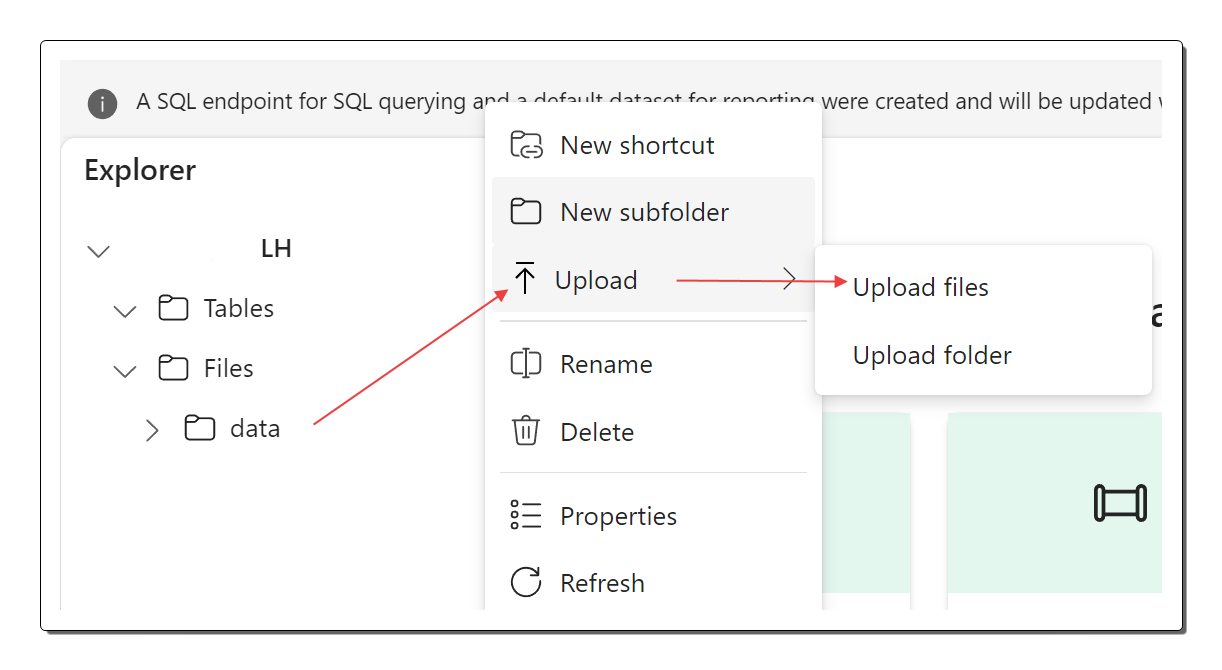
- From the ellipsis menu of the newly created data folder, choose “Upload” and select “Upload file”. Then upload the sales.csv file from your local computer.
- Once the upload is complete, go to the Files/dados folder and check that the sales.csv file was uploaded successfully. It should be visible in the folder contents.
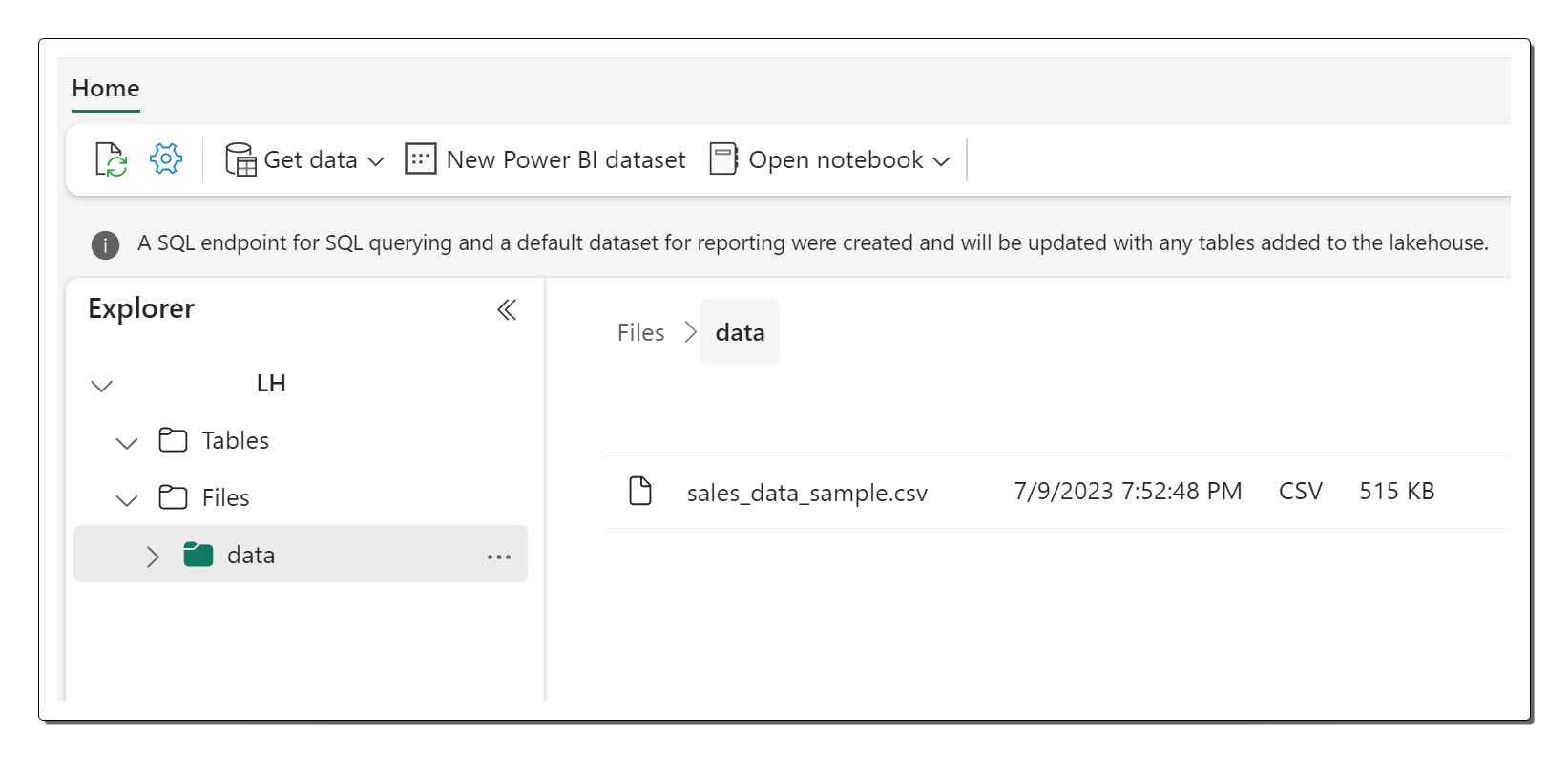
- To view the contents of the uploaded file, just select the sales.csv file.
By following these steps, you can easily bring data into your Microsoft Fabric lakehouse, letting you explore and analyze the uploaded sales.csv file and unlock its insights.
Turning File Data into Queryable Tables
To make the uploaded sales data more usable, Microsoft Fabric offers the ability to load the data from a file into a table. This lets data analysts and engineers use SQL queries for efficient data exploration. Follow these steps to load the file data into a table seamlessly:
Start by going to the home page and selecting the Files/Dados folder. Here you’ll find the sales.csv file you uploaded earlier.
Open the ellipsis menu (…) for the sales.csv file and choose “Load to tables” from the options provided.
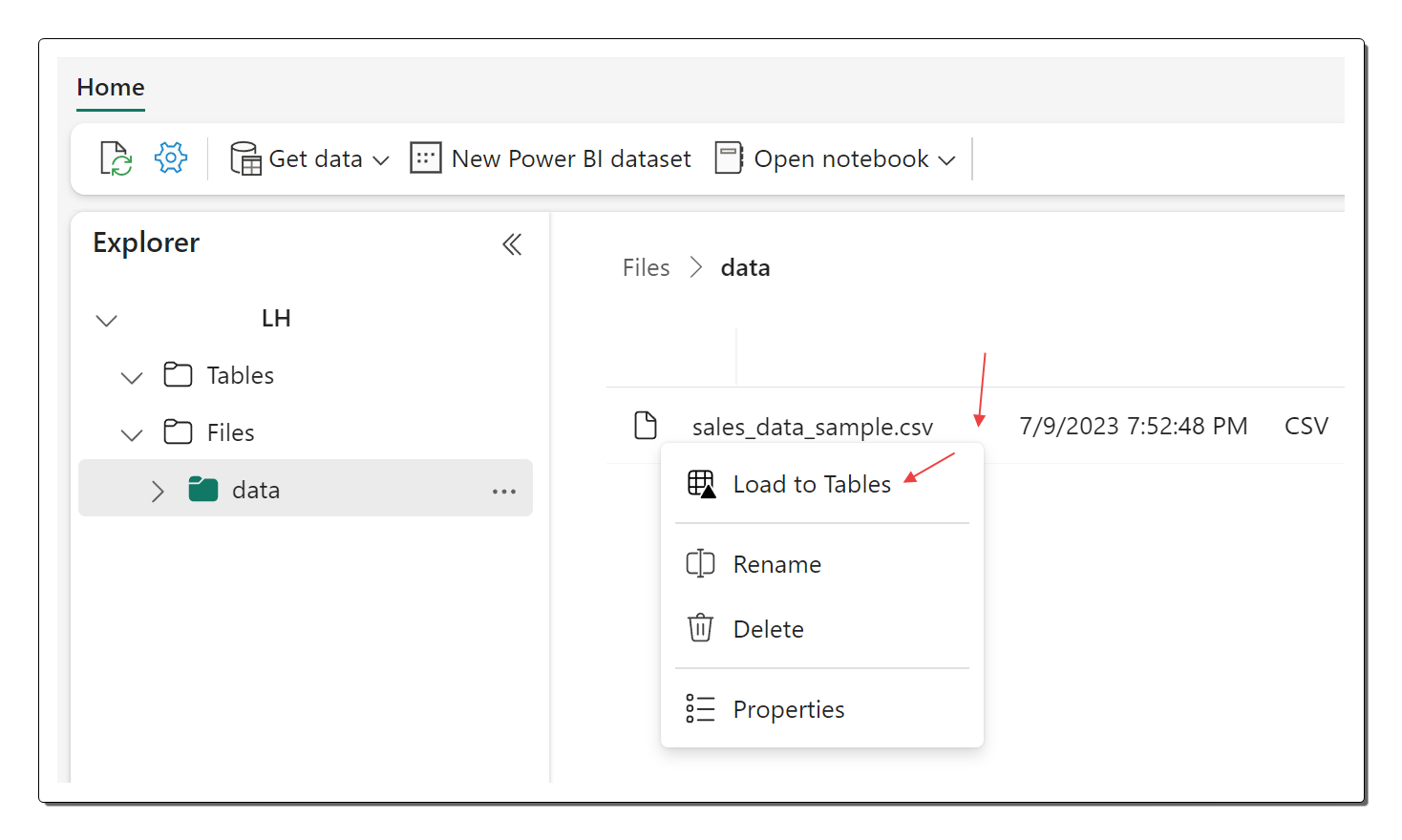
In the Load to table dialog box, give the table a suitable name, such as “vendas”, and confirm the load operation. Now wait patiently for the table creation and data load process to finish.
In the Lakehouse explorer pane, find the newly created “vendas” table to get visibility into its data.
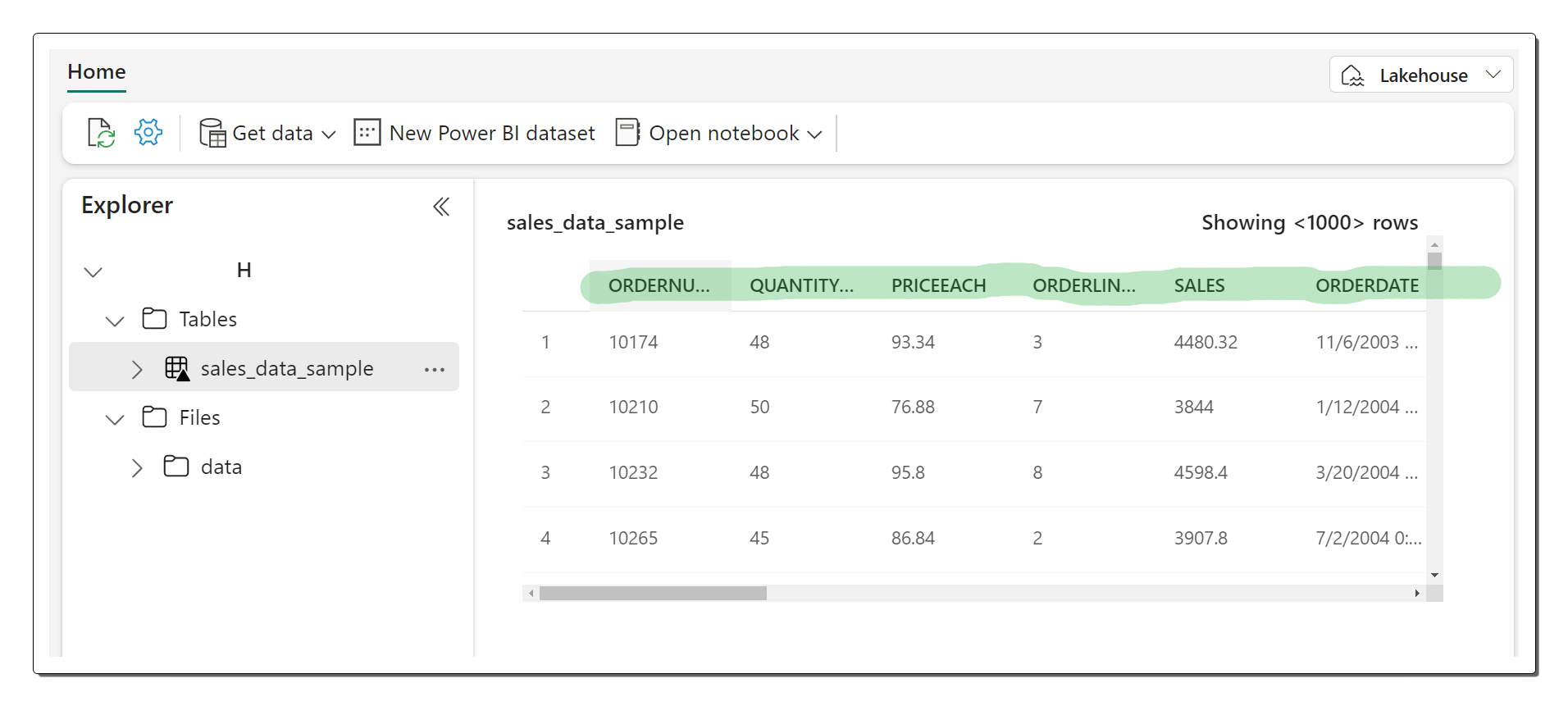
- To explore the underlying files associated with the sales table, open the table’s ellipsis menu (…) and select “View files”.
It’s worth noting that the files of a Delta table are stored in Parquet format, including a subfolder called “_delta_log” that keeps the transactional details applied to the table.
By following these steps, you can turn the uploaded sales data into a queryable table, opening up a world of possibilities for data analysis and extracting valuable insights in Microsoft Fabric.
Unlocking Data Exploration with SQL
Once you’ve created a lakehouse and defined tables in it, a powerful SQL endpoint is generated automatically. This endpoint lets you query your tables effortlessly using SQL SELECT statements, enabling seamless data exploration. Follow these steps to take advantage of the SQL endpoint in your Microsoft Fabric lakehouse:
- In the top-right corner of the Lakehouse page, find the option that toggles between Lakehouse and SQL endpoint. Click it to switch to SQL endpoint mode.
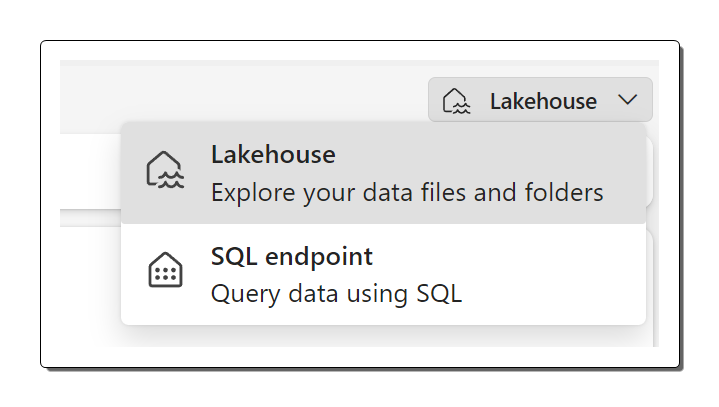
- Wait a moment for the SQL query endpoint to start up. Soon you’ll see a visual interface that lets you query tables in your lakehouse. The interface opens up interesting possibilities for data exploration, as shown here.
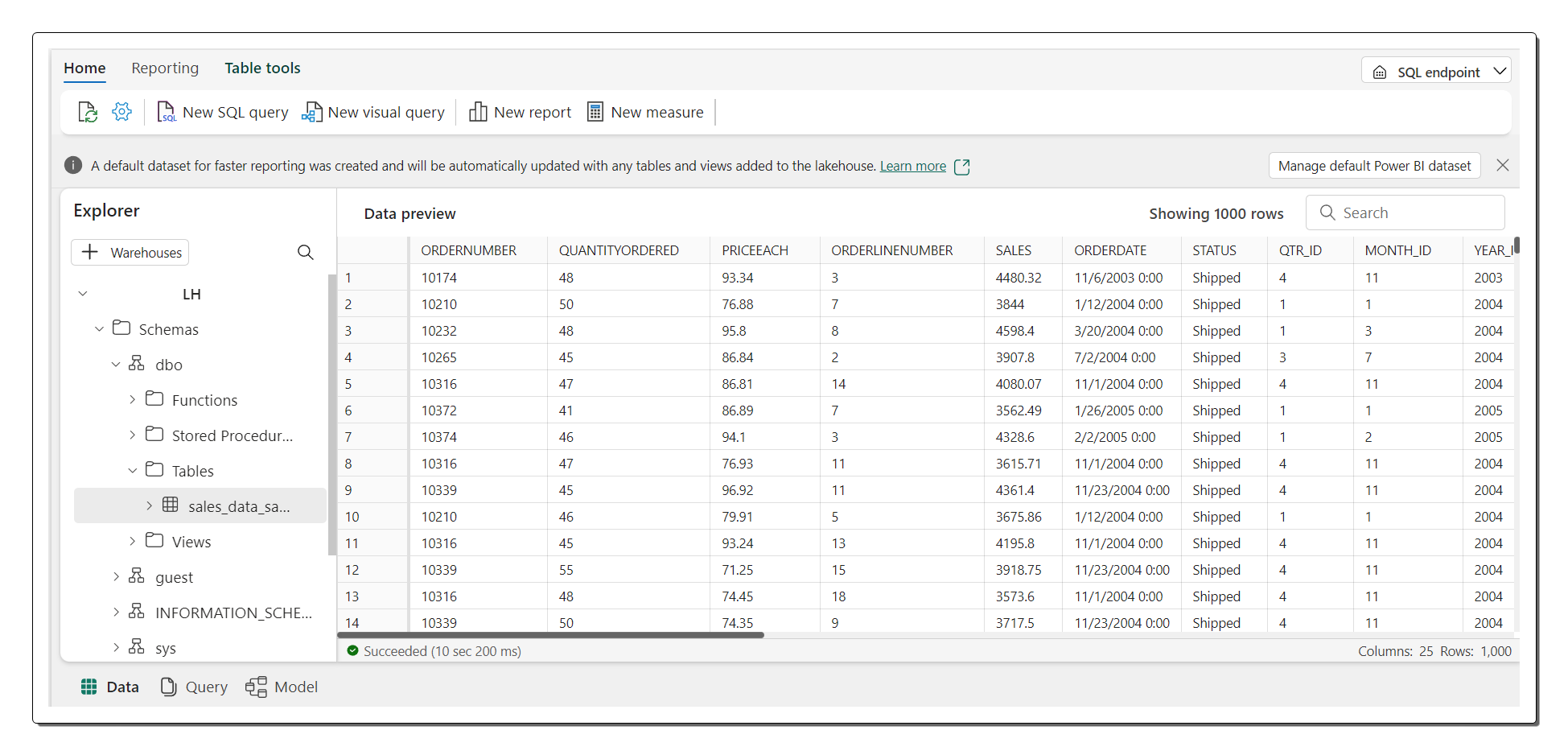
- To start querying, use the “New SQL query” button, which opens a query editor.
SELECIONE CÓDIGO DO PRODUTO, AVG(QUANTITYORDERED) AS AvgQuantityOrdered, AVG(PRICEEACH) AS AvgPrice
DE sales_data_sample
AGRUPAMENTO POR CÓDIGO DE PRODUTO;
- In the query editor, enter the SQL query you want. For example, calculate the average quantity ordered and the average price for each product code.
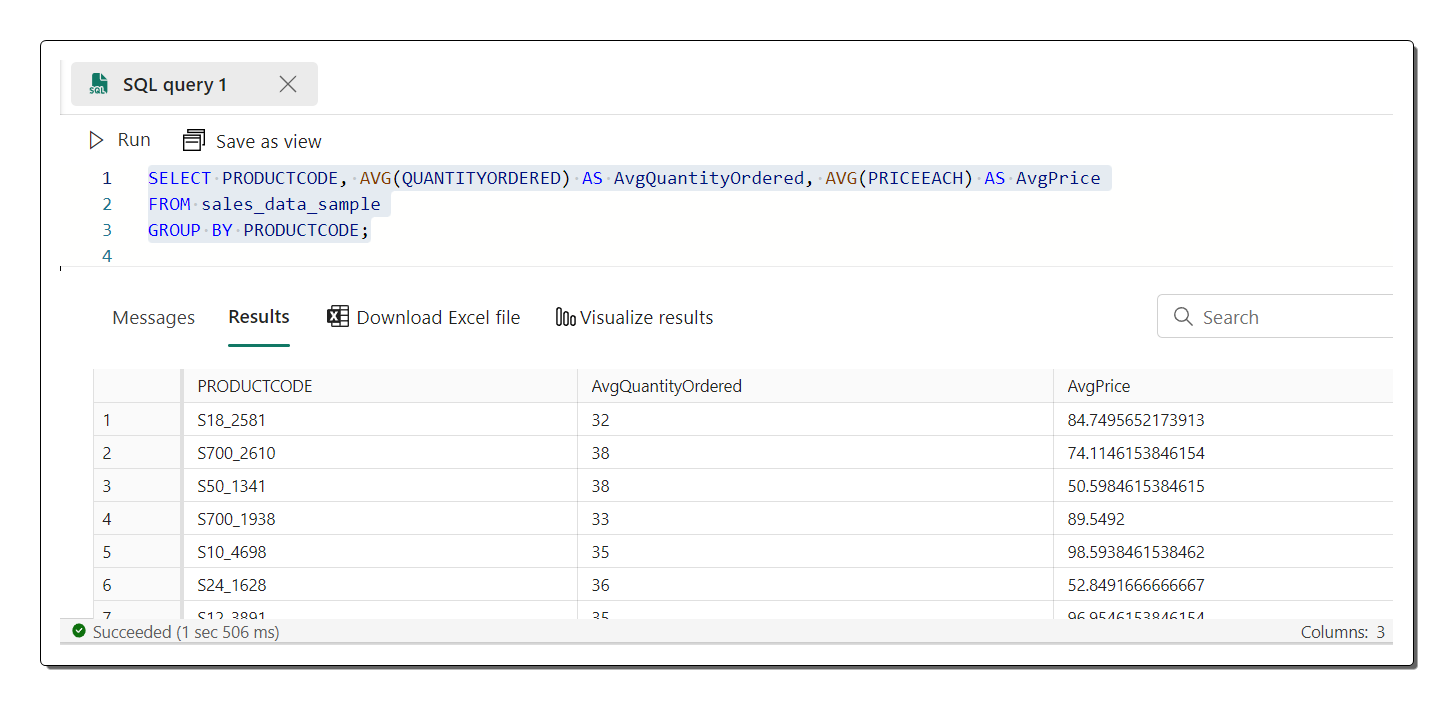
- To run the query and view the results, just click the “▷ Run” button.
By following these steps, you can tap into the potential of the SQL endpoint in your Microsoft Fabric lakehouse, running SQL queries effortlessly and getting valuable insights from your data.
Building Powerful Reports with Power BI
Inside the Microsoft Fabric lakehouse, the tables you define automatically become part of a default dataset, forming the foundation for reporting and analytics with Power BI. Follow these steps to take advantage of default datasets and build insightful reports:
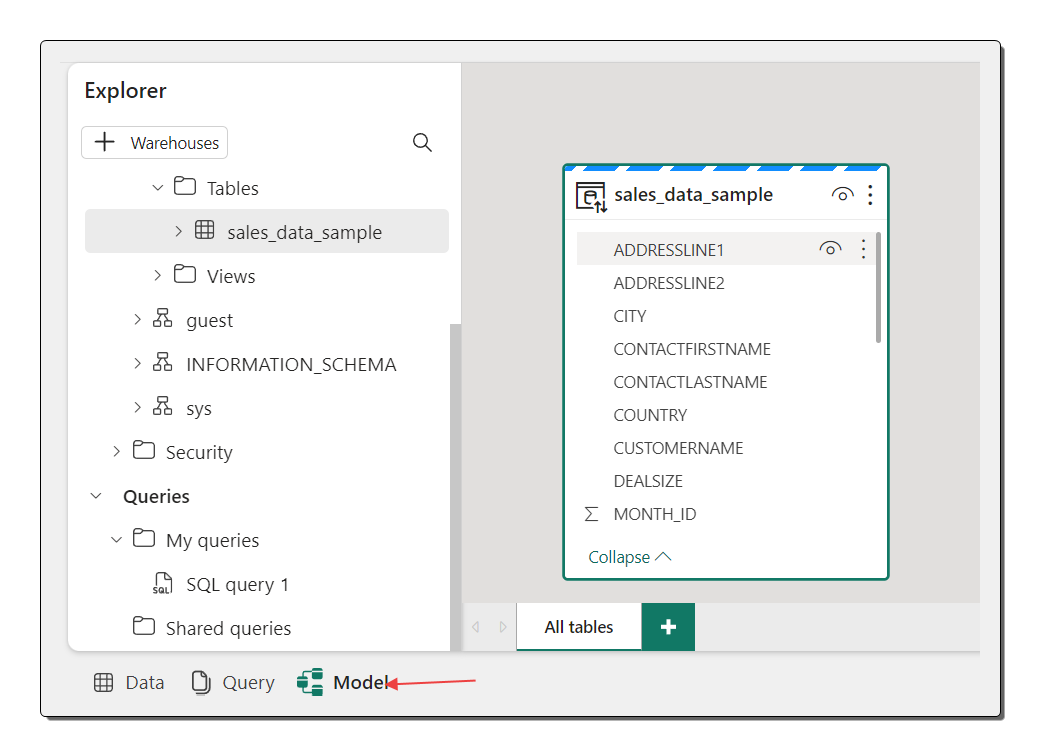
- At the bottom of the SQL Endpoint page, find and select the “Model” tab. This tab reveals the schema of the data model associated with the dataset.
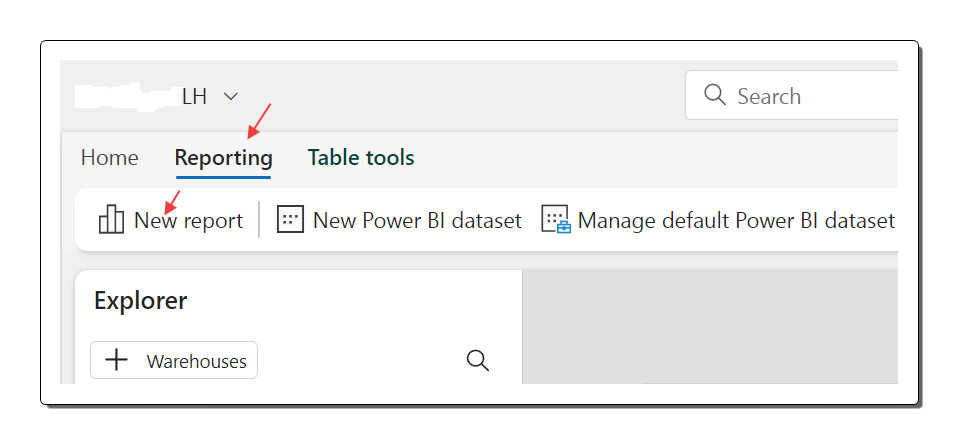
- On the menu ribbon, go to the “Reporting” tab and click “New report”. This opens a new browser tab dedicated to building your report.
- In the Data pane on the right, expand the “vendas” table. Select the fields you want for your report, such as “PRODUCTLINE” and “SALES”.
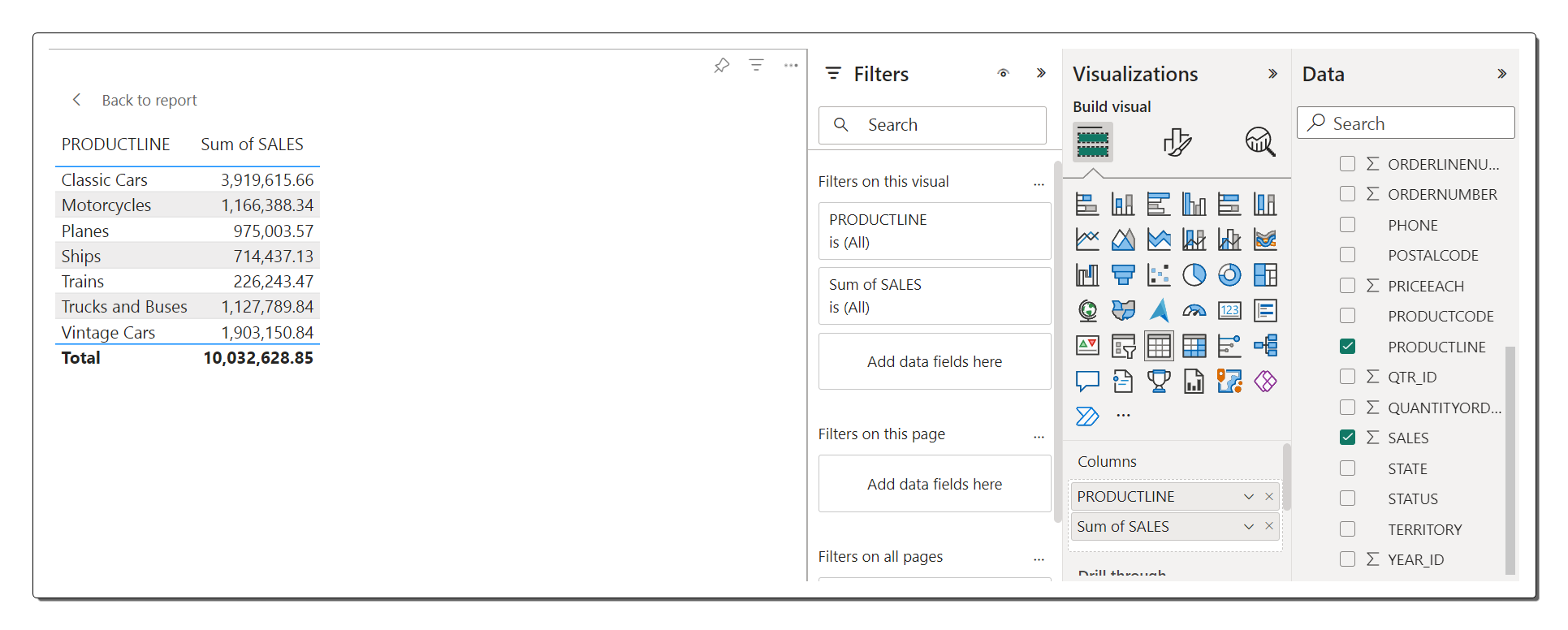
A table visualization is automatically added to the report, showing the selected data.
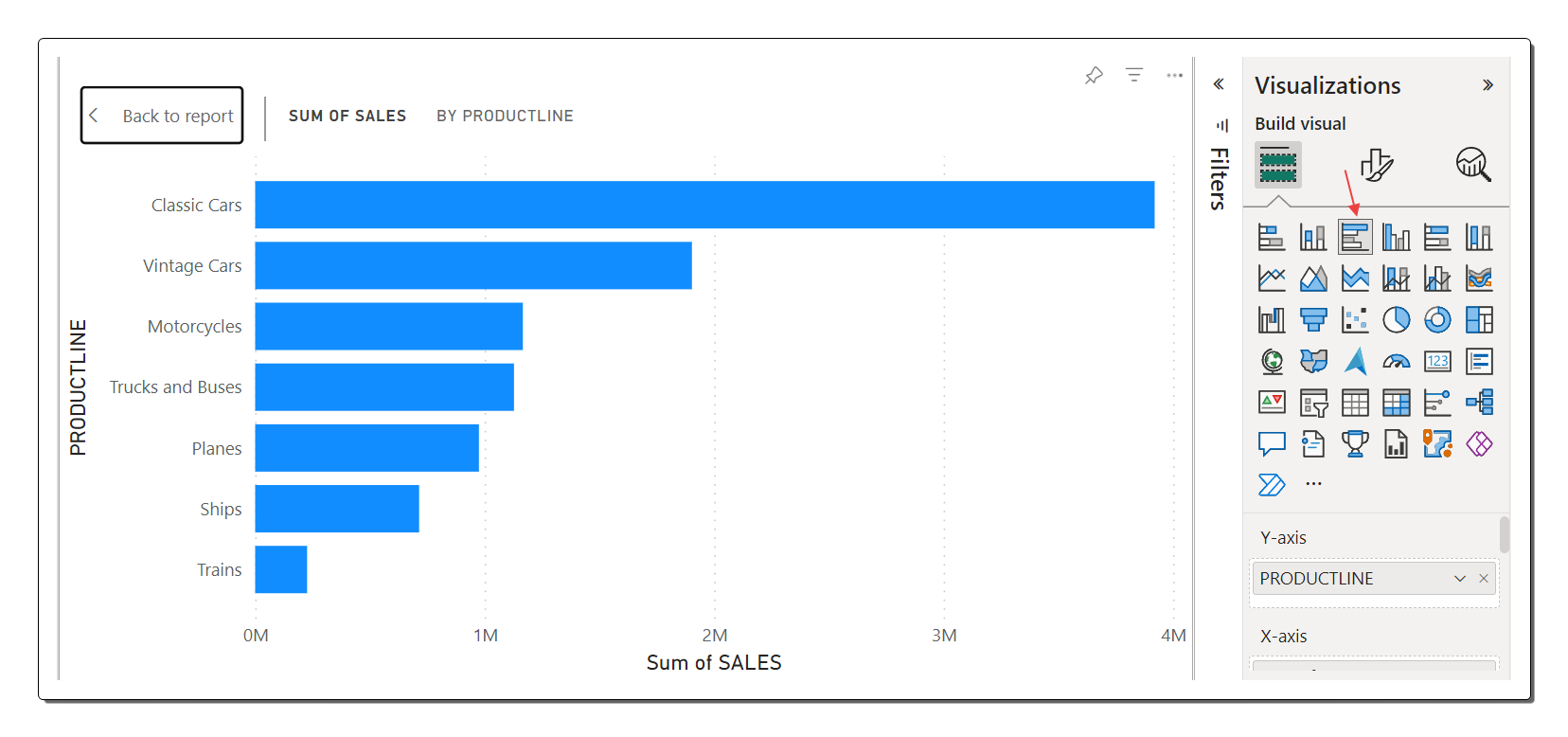
To make the most of the workspace, hide the Data and Filters panes, creating more room for designing the report. Make sure the table visualization is selected and, in the Visualizations pane, customize the visualization by converting it into a clustered bar chart. Adjust the size and look of the chart as you like.
To save your progress, open the File menu and select “Save”. Save the report as “Product Sales Report” in the workspace you created earlier.
Close the browser tab containing the report to return to your lakehouse’s SQL endpoint. In the center-left menu bar, select your workspace to confirm it now includes the following items:
Your data lake
The SQL endpoint for your data lake
A default dataset representing the tables in your data lake
The “Product Sales Report” report
By following these steps, you can use the default datasets in the Microsoft Fabric Lakehouse to build visually appealing, insightful reports with Power BI. This lets you gain valuable business intelligence and make data-driven decisions with ease.
Clean Up Resources
After successfully creating a lakehouse and importing data into it, it’s essential to make sure resources are managed efficiently. This section walks you through the process of cleaning up your resources. Let’s dive in:
If you’ve finished exploring the data lake and no longer need the workspace created for this exercise, it’s time to remove it.
On the left side of the interface, find and select the icon representing your workspace. This shows all the items contained in the workspace.
On the toolbar, open the ellipsis menu (…) and click “Workspace settings”.
In the “Other” section of the settings, find and select the “Remove this workspace” option.
By following these steps, you can organize your resources effectively by deleting the workspace associated with the exercise. This ensures efficient use of resources in your Microsoft Fabric Lakehouse environment. After successfully creating a lakehouse and importing data into it, it’s essential to make sure resources are managed efficiently. This section walks you through the process of cleaning up your resources. Let’s dive in:
If you’ve finished exploring the data lake and no longer need the workspace created for this exercise, it’s time to remove it.
On the left side of the interface, find and select the icon representing your workspace. This shows all the items contained in the workspace.
On the toolbar, open the ellipsis menu (…) and click “Workspace settings”.
In the “Other” section of the settings, find and select the “Remove this workspace” option.
By following these steps, you can organize your resources effectively by deleting the workspace associated with the exercise. This ensures efficient use of resources in your Microsoft Fabric Lakehouse environment.
Phew, that was a long read, but I hope it’s a big help!!!
Take care!